Processing Algorithms
Usage
Processing Toolbox
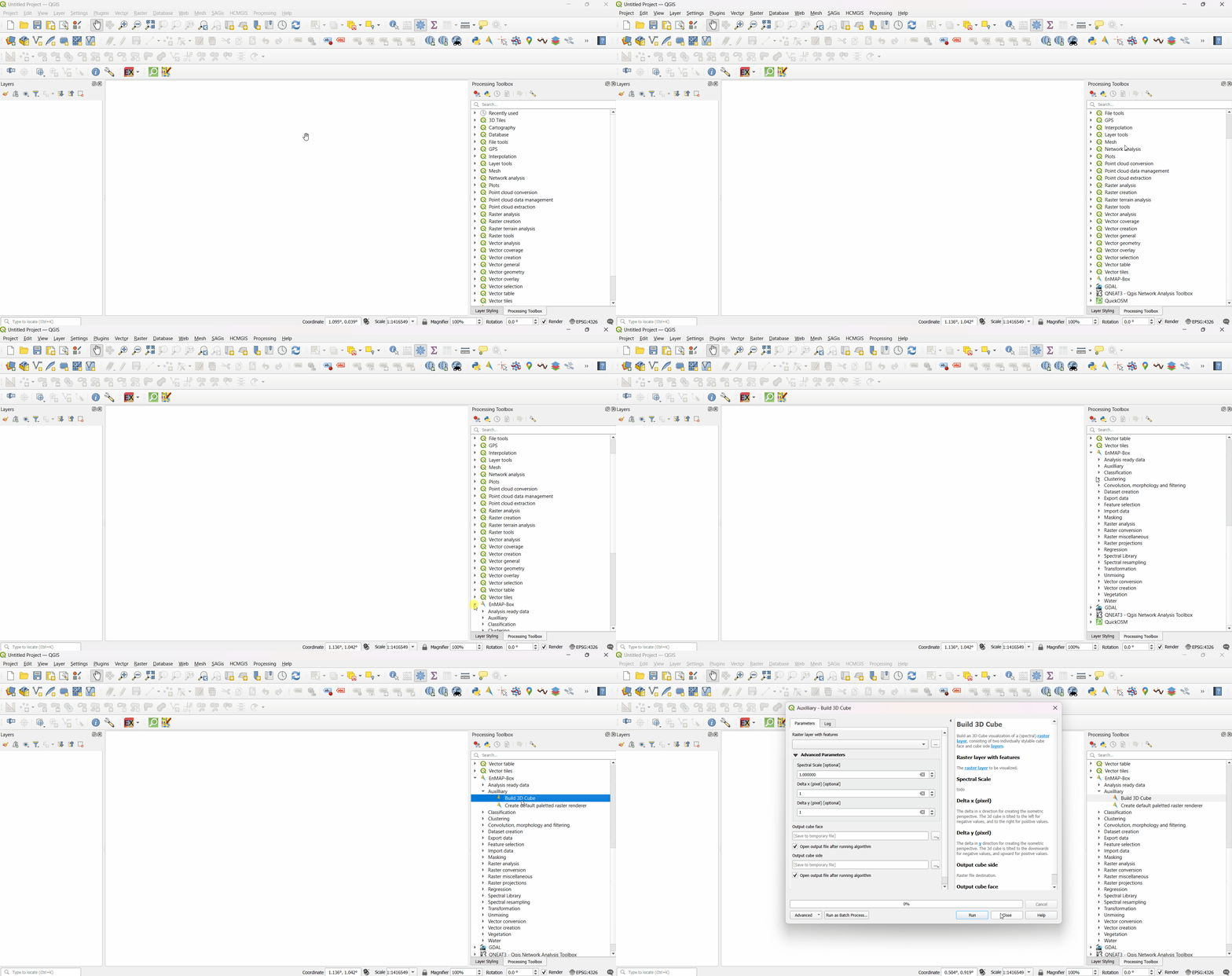
Open the Processing Toolbox: Processing > Toolbox or press Ctrl + Alt + T.
Search the name of the Algorithm in the search bar or scroll down and click on EnMAP-Box and a drop down of all algorithms will appear.
The dialog box will appear once you double-click on the algorithm you want to use.
Now fill the parameters, inputs and output locations and Click on run.
Model Designer
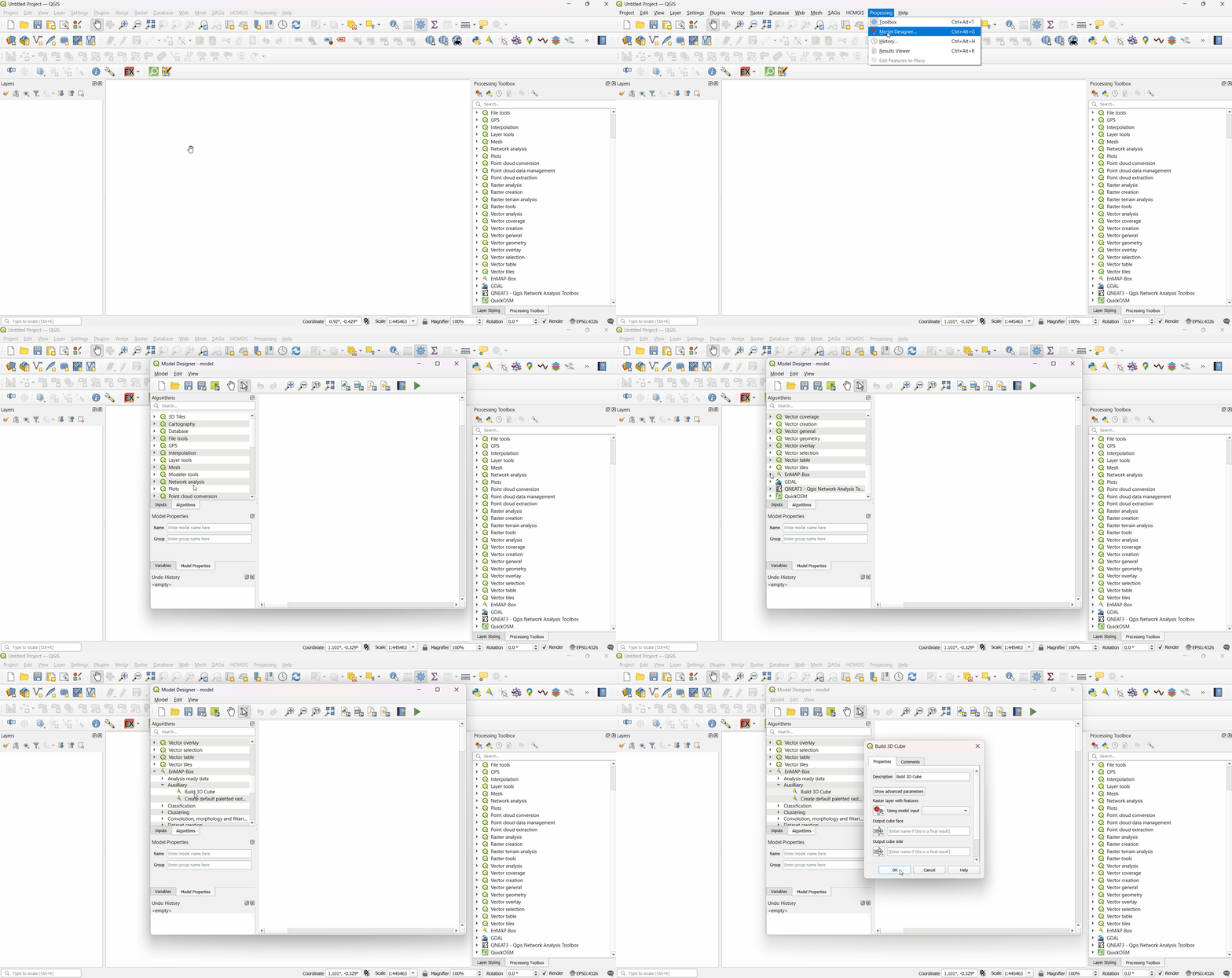
Open Model Designer: Processing > Graphical Modeler or press Ctrl + Alt + G.
Load your model in the it and to incorporate EnMAP-Box Algorithms click on the Algorithms tab.
Scroll down and click on EnMAP-Box from the list , drop down list with all the algorithms will appear.
Select and drag the algorithm you want into your model. A dialog box will appear, adjust the input and parameters according to your needs and click OK.
Python Console
QGIS installed (with EnMAP-Box plugin installed).
The EnMAP-Box plugin is activated (under Plugins > Manage and Install Plugins).
The processing module is imported.
import processing
You’re familiar with the names of the algorithms or can find them using the command below.
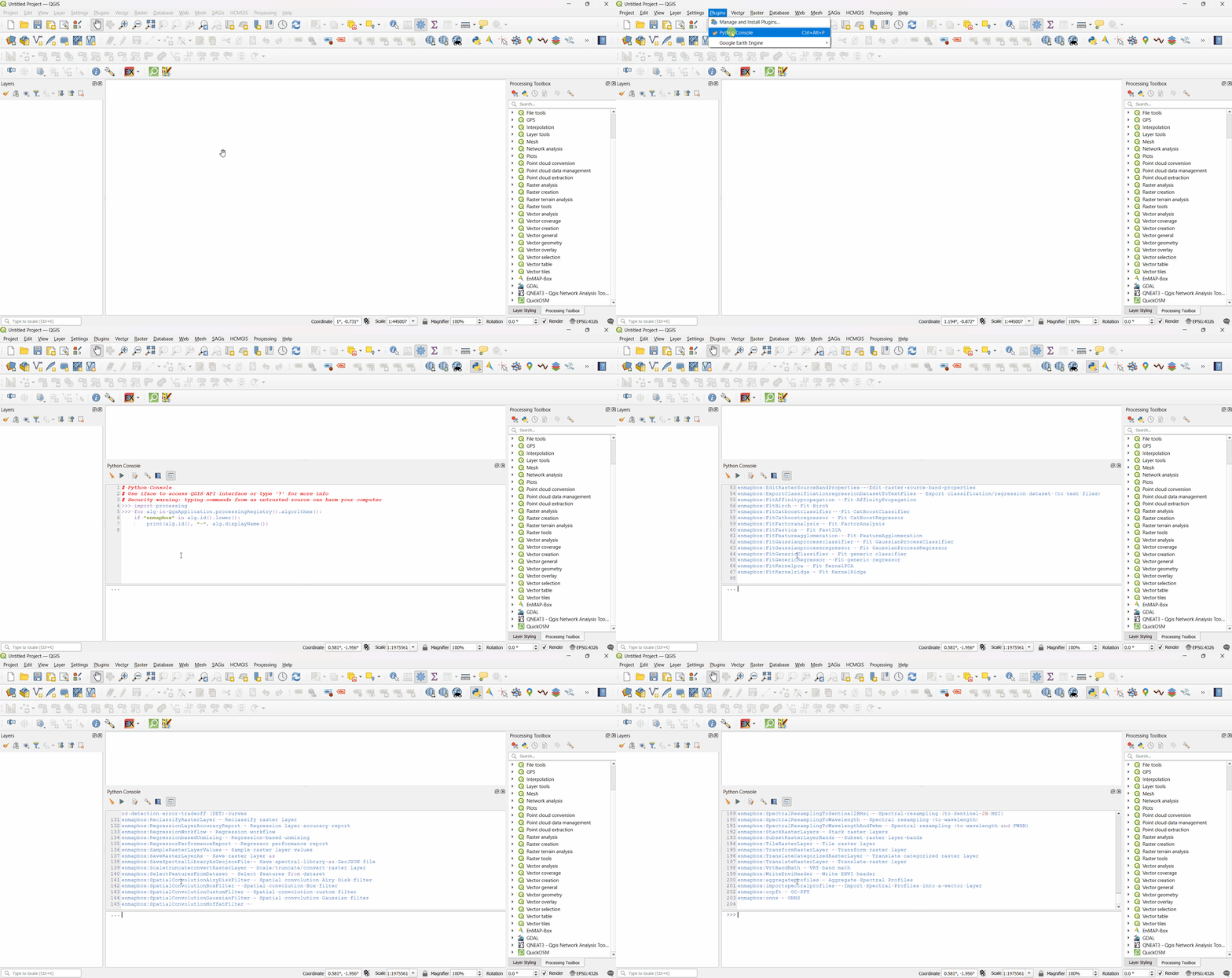
Once you know the algorithm ID (like enmapbox:Build3DCube), you can get help like this:
processing.algorithmHelp("enmapbox:Build3DCube")You can obtain the Python command for any algorithm by opening its dialog box, clicking the Advanced button, and selecting Copy as Python Command.
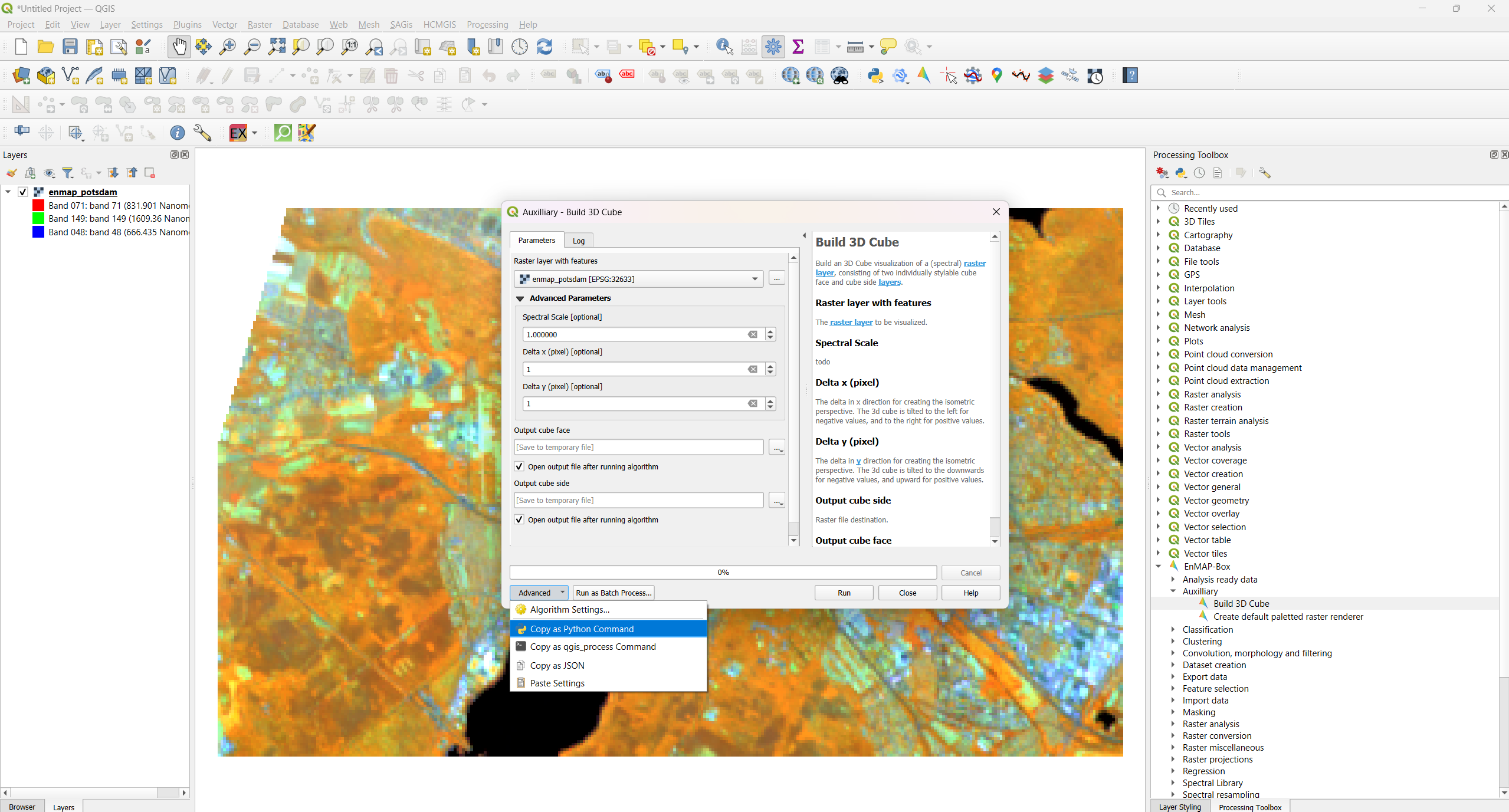
Use the copied function to run the algorithm:
processing.run("enmapbox:Build3DCube", {
'raster':'C:/Users/Aryan/AppData/Roaming/QGIS/QGIS3/profiles/default/python/plugins/enmapboxplugin/enmapbox/exampledata/enmap_potsdam.tif',
'spectralScale':1,'dx':1,'dy':1,
'outputCubeFace':'TEMPORARY_OUTPUT',
'outputCubeSide':'TEMPORARY_OUTPUT'
})
You need to adjust the parameters according to the algorithm’s needs. Paths can be to files on disk or to in-memory layers.
Command Line Usage
Open your conda prompt and activate the enmapbox.
You can obtain the Command line code for any algorithm by opening its dialog box, clicking the Advanced button, and selecting Copy as Python Command.
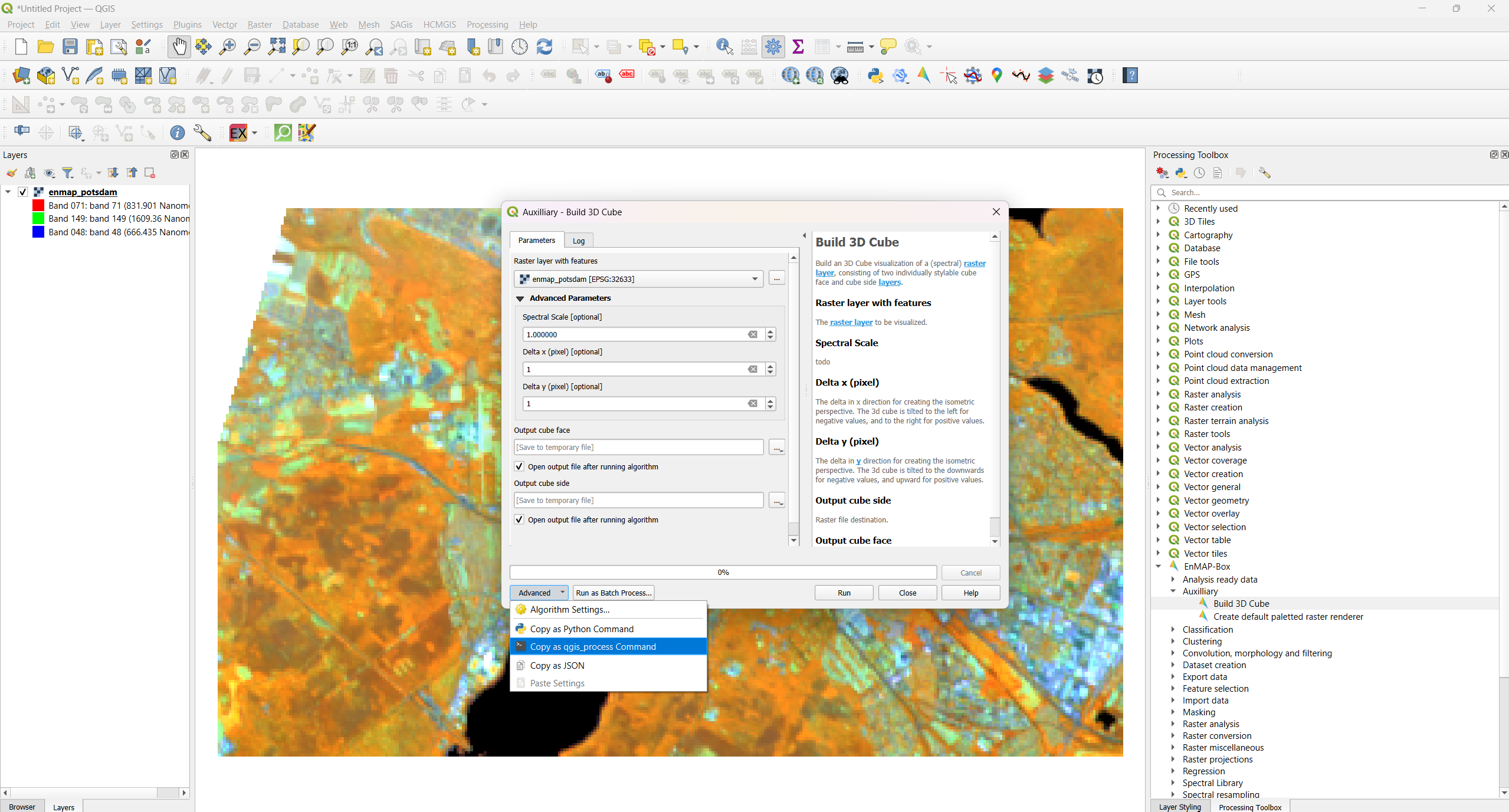
Use the copied function to run the algorithm:
qgis_process run enmapbox:Build3DCube --distance_units=meters --area_units=m2 --ellipsoid=EPSG:7030 --raster='C:/Users/Aryan/AppData/Roaming/QGIS/QGIS3/profiles/default/python/plugins/enmapboxplugin/enmapbox/exampledata/enmap_potsdam.tif' --spectralScale=1 --dx=1 --dy=1 --outputCubeFace=TEMPORARY_OUTPUT --outputCubeSide=TEMPORARY_OUTPUT
You need to adjust the parameters according to the algorithm’s needs. Paths can be to files on disk or to in-memory layers.
>qgis_process help enmapbox:Build3DCube:
----------------
Arguments
----------------

raster: Raster layer with features
    Argument type:    raster
    Acceptable values:
        - Path to a raster layer
spectralScale: Spectral Scale (optional)
    Default value:    1
    Argument type:    number
    Acceptable values:
        - A numeric value
        - field:FIELD_NAME to use a data defined value taken from the FIELD_NAME field
        - expression:SOME EXPRESSION to use a data defined value calculated using a custom QGIS expression
dx: Delta x (pixel) (optional)
    Default value:    1
    Argument type:    number
    Acceptable values:
        - A numeric value
        - field:FIELD_NAME to use a data defined value taken from the FIELD_NAME field
        - expression:SOME EXPRESSION to use a data defined value calculated using a custom QGIS expression
dy: Delta y (pixel) (optional)
    Default value:    1
    Argument type:    number
    Acceptable values:
        - A numeric value
        - field:FIELD_NAME to use a data defined value taken from the FIELD_NAME field
        - expression:SOME EXPRESSION to use a data defined value calculated using a custom QGIS expression
outputCubeFace: Output cube face
    Argument type:    rasterDestination
    Acceptable values:
        - Path for new raster layer
outputCubeSide: Output cube side
    Argument type:    rasterDestination
    Acceptable values:
        - Path for new raster layer

----------------
Outputs
----------------

outputCubeFace: <outputRaster>
    Output cube face
outputCubeSide: <outputRaster>
    Output cube side
Algorithms
- Analysis ready data
- Auxilliary
- Classification
- Clustering
- Convolution, morphology and filtering
- Dataset creation
- Export data
- Feature selection
- Import data
- Masking
- Raster analysis
- Raster conversion
- Raster miscellaneous
- Raster projections
- Regression
- Spectral Library
- Spectral resampling
- Transformation
- Unmixing
- Vector conversion
- Vector creation