Setup your programming project
Install the EnMAP-Box as QGIS Plugin, as described in https://enmap-box.readthedocs.io/en/latest/usr_section/usr_installation.html Start the EnMAP-Box and open Project > Load Example Data, which will download and install the EnMAP-Box testdata sets.
Create a workshop folder, hereafter referred as
<workshop folder>Clone the workshop repository and checkout the develop branch
cd <workshop folder>
git clone https://bitbucket.org/hu-geomatics/enmap-box-workshop2019.git
cd enmap-box-workshop2019
git checkout develop
Start PyCharm and create a new project
<workshop folder>/programming_tutorial.Set the QGIS python as python interpreter (for more details on this and the following steps you might also read here <https://enmap-box.readthedocs.io/en/latest/dev_section/dev_installation.html#create-a-new-project>)
Add the workshop repository folder
enmap-box-workshop2019to your project sourcesAdd the QGIS python code folder
<QGIS Root>/apps/qgis/pythonto your project sources and mark itspluginssubfolder as source root.Note
Folders in the PyCharm project tree can be defined as source root by right-mouse click > Mark Directory as > Source Root.
Add the EnMAP-Box plugin folder to your project sources and mark its
site-packagessubfolder as source root.
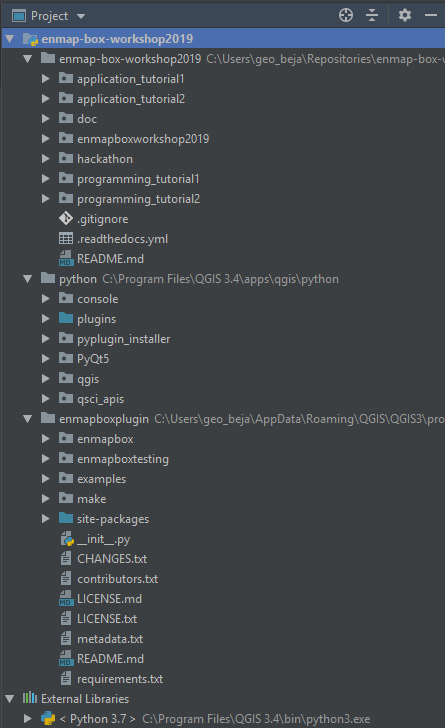
Fig. 52 PyCharm project structure after adding the QGIS and EnMAP-Box source code as project sources