 Spectral Libraries
Spectral Libraries are collections of (i) spectral profiles and (ii) attributes that describe these profiles. The EnMAP-Box stores spectral profiles in vector layers. Compared to “traditional” spectral library formats like CSV text files or the ENVI Spectral library format, this has some advantages:
We can link spectral profiles to geometries (points, lines, polygons) and easily display them in GIS maps. For example, the locations of measurements made with a field spectrometer.
Spectral profiles can be linked with other spectral profiles. For example, a “target” measurement and the related “white reference” measurement can be stored together in the same vector layer feature.
Spectral profiles can be linked with an arbitrary number of numeric, textual or categorical attributes, each having a dedicated data type. We can use QGIS/GDAL or data format-specific features to prevent incorrect values and ensure data integrity by design. For example, it can be ensured that leaf area index values have to be numeric and larger zero, or that values of an attribute material_type need to exist in a list of predefined material names.
Spectral profiles can be stored in a wide range of data formats, ranging from local file types like GeoJSON or GeoPackage to powerful database management systems like PostgreSQL.. Each of them may have its own advantages, often specific to the project, user and metadata to be stored together with spectral profiles.
Since spectral profiles and their metadata are usually offered in different formats (ENVI, ASD, text files, …), the EnMAP-Box supports importing profiles from a wide range of file types.

Fig. 23 EnMAP-Box, showing profiles from the speclib_potsdam.zip example library, together with profiles collected from an EnMAP example image.
 Spectral Library Viewer
The Spectral Library Viewer is the main tool to display spectral profiles in the EnMAP-Box. It shows profiles that can be stored in different Profile Fields and in different vector layers.
The plot settings panel on the right of the viewer is shown by activating the  button.
The panel is used to set up one or multiple profile visualizations. Each defines:
button.
The panel is used to set up one or multiple profile visualizations. Each defines:
The vector layer and Profile Fields to read the spectral profiles
The profile styling: line type, symbol type, color. The color can be set statically or using a QGIS expression.
The profile name: a QGIS expression that generates the name that is used in the legend
An optional filter, for example to display only profiles matching a criterion like class_type=’vegetation’
The General Settings node allows to adjust the general appearance of the plot, e.g. by changing the background and foreground color, or activating the legend.
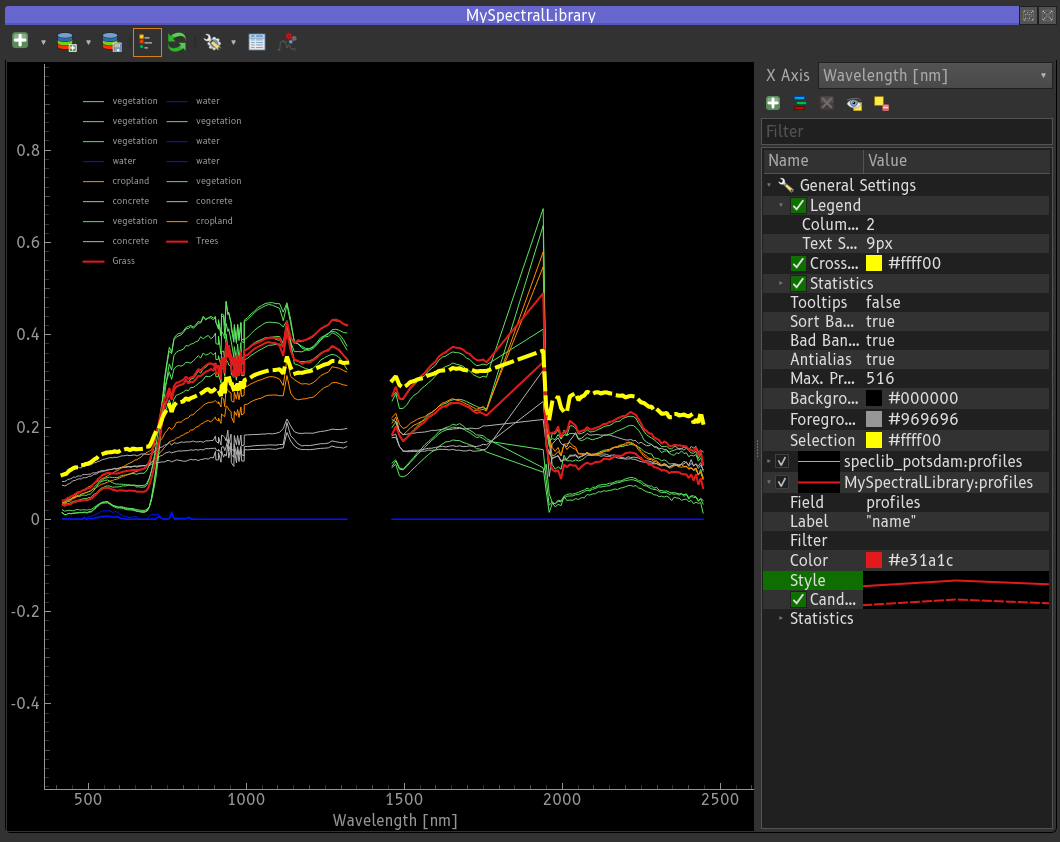
Fig. 24 Spectral Library Viewer
Selecting profiles in the profile plot does select the vector features the profile data is stored in. Selecting vector features in a map or attribute table does highlight the related profiles in the profile plot.
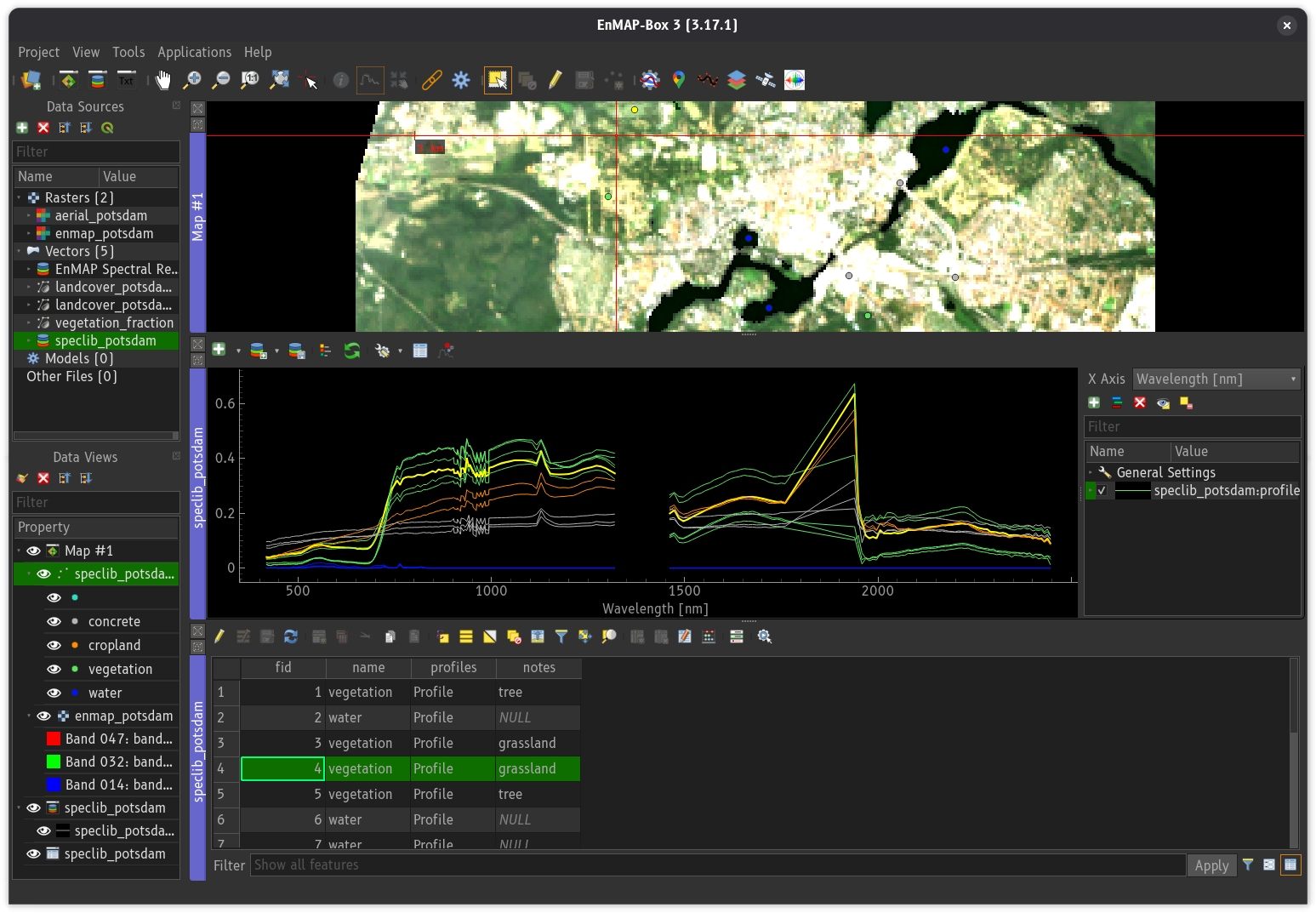
Fig. 25 When profiles are selected in the spectral library viewer, the corresponding vector features will also be selected in the map (top) and attribute table (bottom).
 Attribute Table
The Attribute Table widget can be used to inspect and modify profile attributes. It
displays vector data either in table view  or using the form view
  .
The form view for Spectral Profile fields allows to show spectral profile values as
graph, JSON document or in a table.
.
The form view for Spectral Profile fields allows to show spectral profile values as
graph, JSON document or in a table.
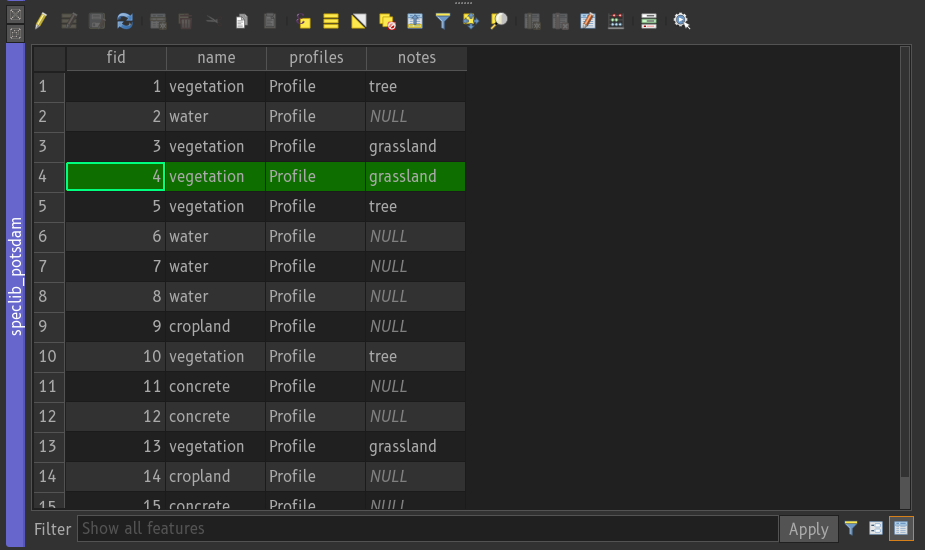
Fig. 26 Attribute table widget, showing spectral library attributes in table view.
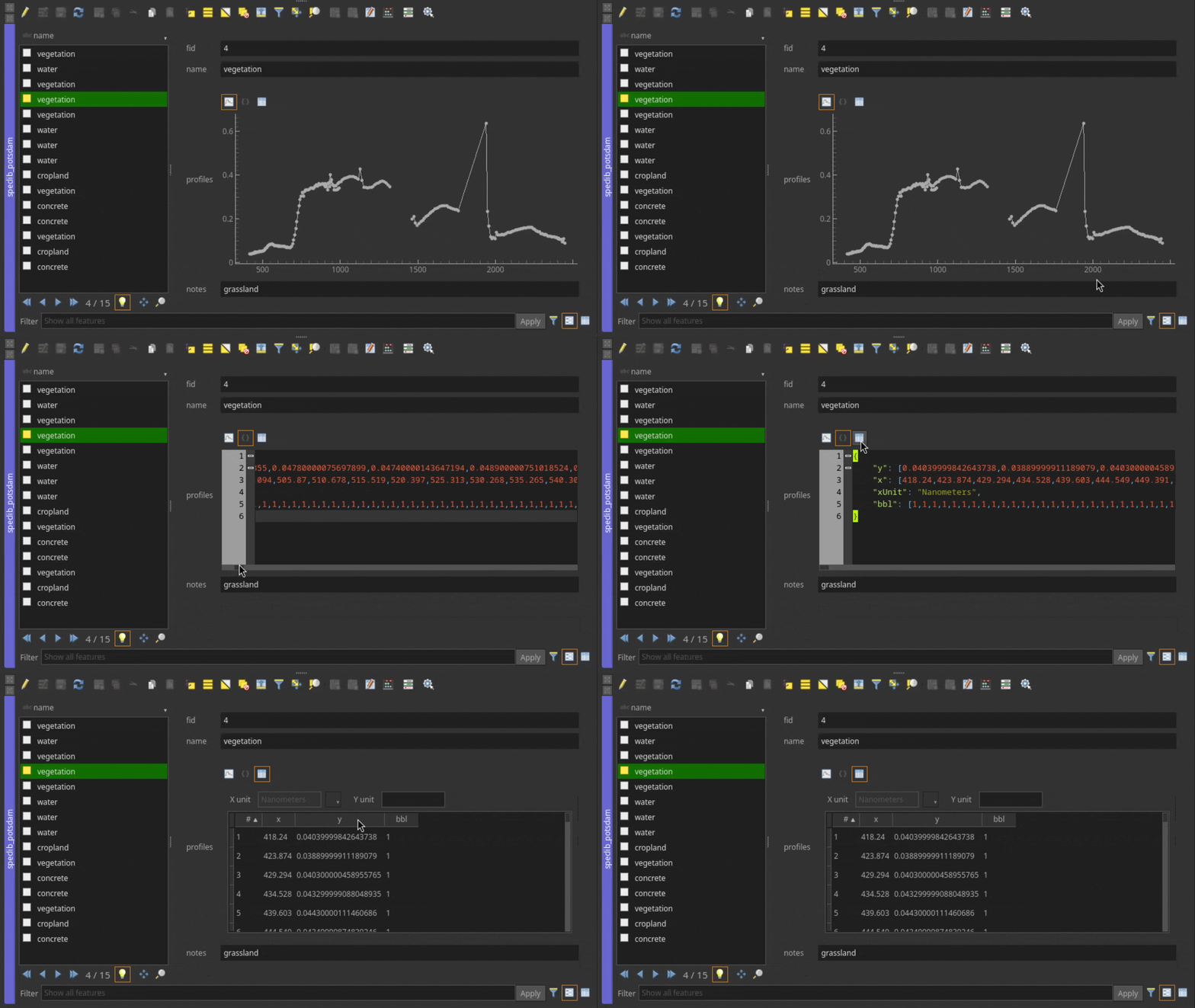
Fig. 27 Attribute table widget, showing spectral library attributes in form view.
The attribute table widget can be opened from different places, e.g., the context menu of a vector data source in the data sources panel or a vector layer in the layer tree of the data view panel.
In the Spectral Library Viewer it can be selected from the toolbar and the context menu of a profile visualization node, whose vector layer will then be opened in the attribute table widget.
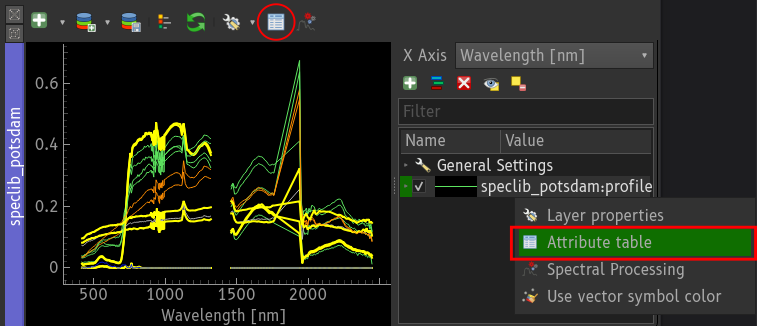
Fig. 28 Opening the attribute table for a vector layer whose profiles are shown in the spectral library viewer.
 Profile Data
A single spectral profile contains the minimum information that is required to draw a profile.
This information is stored in a JSON dictionary that contains at least a list y with profile values:
{
    "y": [0.1011, 0.1018, ... , 0.1080]
}
In addition it is possible to specify:
xa list of position values along the x-axis, e.g. the band wavelengthxUnita string describing the unit of the x valuesyUnita string describing the unit of the y valuesbbla list of bad band multiplier values
If defined, the lists for x and bbl need to have the same length as y.
Values in xUnit should use SI symbols wherever possible, e.g., μm instead of um or micrometers.
{
    "y": [0.1011, 0.1018, ... , 0.1080],
    "x": [418.24, 423.874, ... , 2445.53],
    "xUnit" : "nm",
    "yUnit" : "reflectance",
    "bbl" : [1, 0, ... , 1]
}
Modify spectral profiles
The EnMAP-Box is highly generic in how it supports raster and spectral data. After collecting spectral profiles, e.g. from raster images, by importing them from field measurements or sources like the USGS Spectral Library, the EnMAP Box offers different ways to modify them.
Profile Editor
Using the attribute table widget, the Form View for Spectral Profile fields can be used
to edit profile values, either using a JSON editor or a table that lists the profile values.
Open the attribute table of a spectral library
Activate the form view
Activate the layer edit mode
Select the JSON or Table view
Edit the profile values
Fig. 29 Setting an outlier value to NaN.
Field Calculator
Simple calculations can be done using the QGIS Field Calculator.
Open an attribute table
Open the Field Calculator
Set a new field name or the name of a field you would like to update
Use the spectral_math function to calculate new profiles using a Python expression. Ensure that the output type meets the field type.
If a new field was created, use the layer settings to ensure that the editor widget type is set to Spectral Profile
Example: Calculate reflectance profiles
Let’s assume we have imported radiance measurements made with an ASD Field Spectrometer (for example, the *.asd files available here).
For each measurement we have the radiance profile of the white reference panel (reference) and the target surface (target). To obtain the surface reflectance, we need to divide the target radiance by the corresponding white reference radiance (https://eol.pages.cms.hu-berlin.de/geo_rs/S04_Lab_and_field_spectroscopy.html).
Open an attribute table
Open the Field Calculator

Define the output field. This can be a new field or an existing one.
Use the spectral_math function to calculate new profiles
define the input profiles. E.g., let p1 be the field with the reference radiance profiles and p2 the field with target radiance profiles.
define a Python expression that calculates output profiles. For example:
y = y2 / y1to divide target radiance by the reference radiance and obtain a reflectance profile.ensure that the spectral_math function’s output type meets the type of the output field. For example, use
format='text'if profiles are written into a string/varchar field.
Press ‘OK’
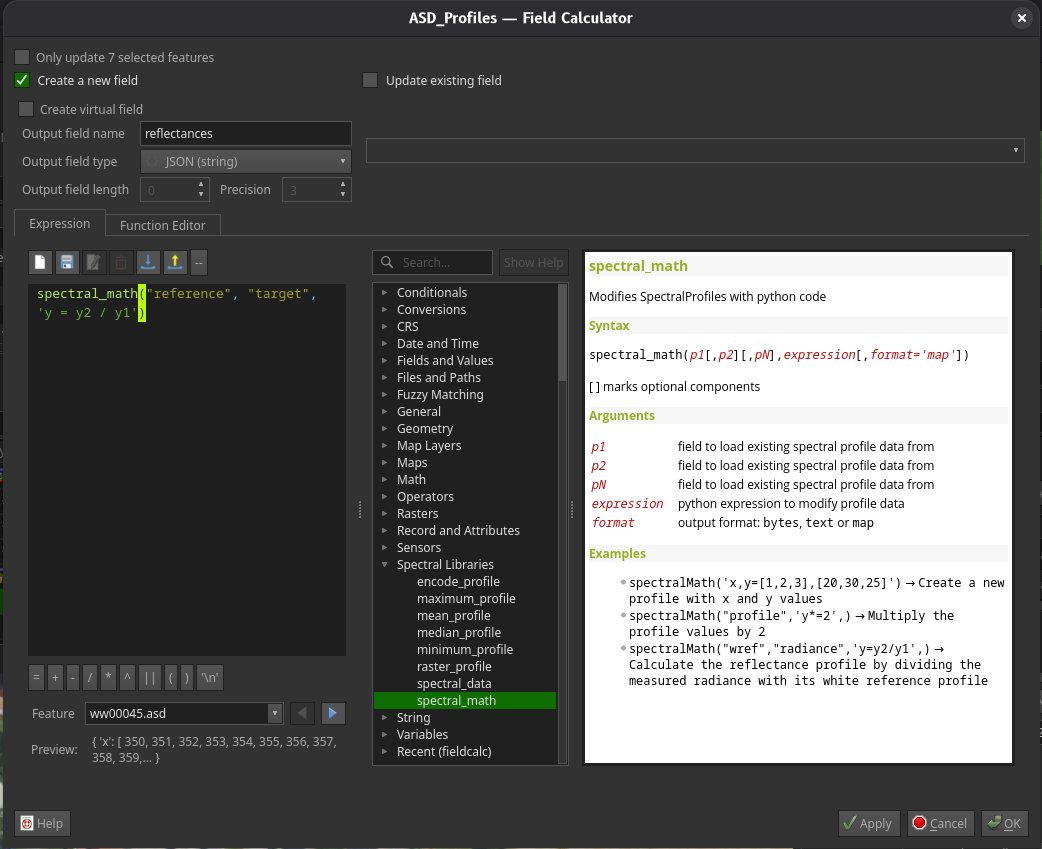
Fig. 30 QGIS field calculator with spectral_math function to calculate profile reflectances.
The spectral_math function makes input profile data available to the Python expression as follows:
y ->
y<n>, 1D numpy array, e.g.,y1for y values of the first input profilex ->
x<n>, 1D numpy array, e.g.,x1for x values of the first input profilexUnit ->
xUnit<n>, string, e.g.,xUnit1for the xUnit string of the first input profile
The output profile is specified using the following variables and default values:
y numpy array or list with y values, defaults to y1
x numpy array or list with x values, defaults to x1
xUnit string with x unit, e.g., nanometers, defaults to xUnit1
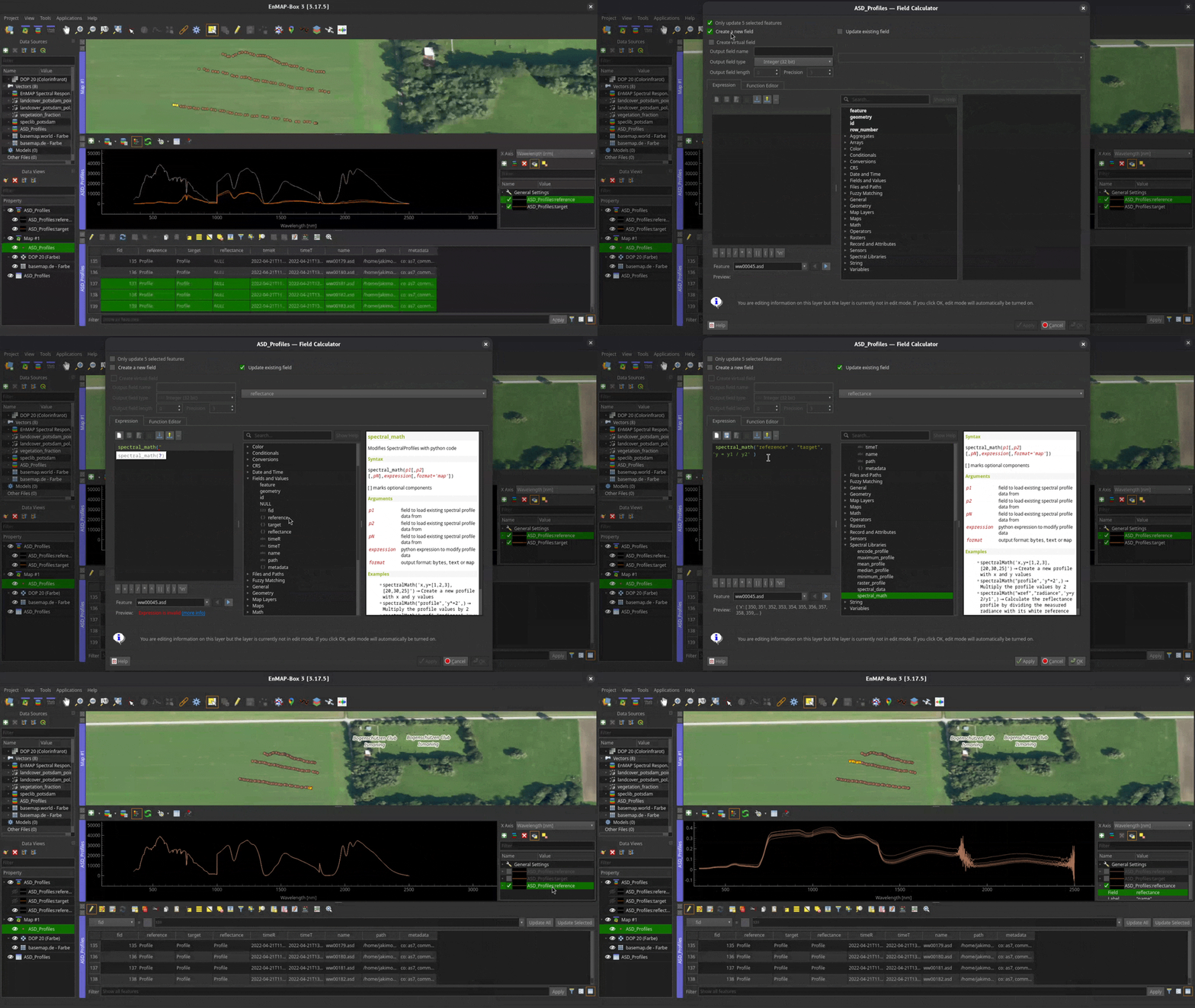
Fig. 31 Calculating profile reflectances using the QGIS Field Calculator.
Spectral Processing
The Spectral Processing tool uses QGIS Processing Algorithms to process spectral profiles.
Open an EnMAP-Box Spectral Library viewer
Within the plot settings tree, select a profile source you would like to process.
Click the Spectral Processing button
 to open the Spectral Processing Dialog.
Select a processing algorithm that uses raster layers as input
Set your processing parameters.
Define the processing output. File names will be mapped into existing or new vector layer fields.
Click Run to start the processing.
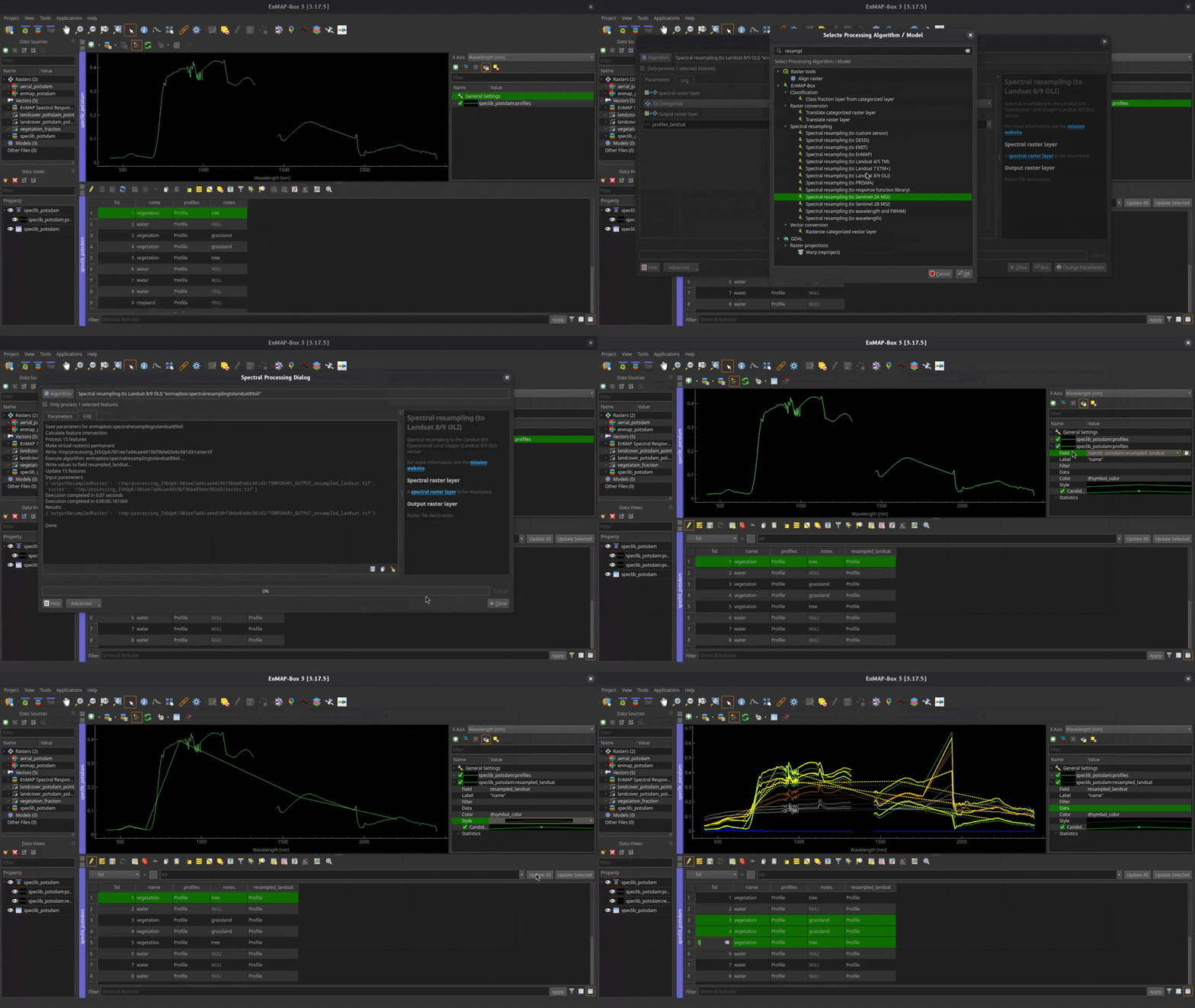
Fig. 32 Using the Spectral Processing dialog to resample EnMAP profiles to Landsat.
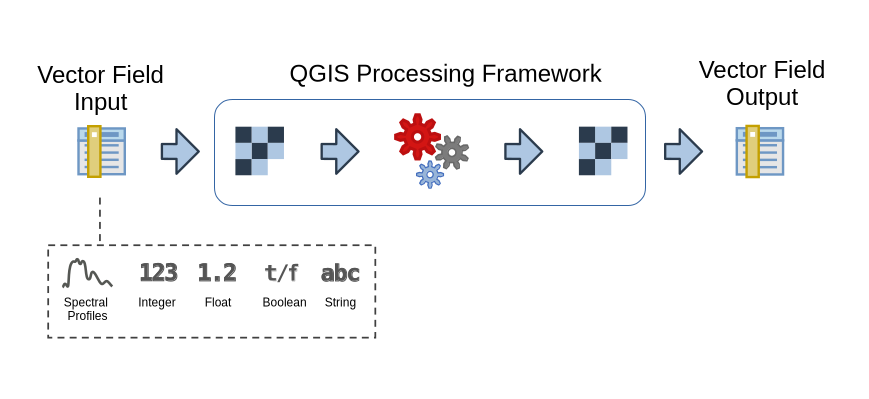
Fig. 33 The data flow handled by the Spectral Processing Dialog to use vector attribute values as raster inputs for QGIS Processing algorithms.
The Spectral Processing Dialog maps the attributes of a spectral library vector layer to temporary raster files. These files are then used as input for QGIS Processing Algorithms. Created raster outputs are converted back into attribute values for the spectral library vector layer. For example, the attribute fields of a spectral library with n = 20 features (aka rows in the Table view) are converted into rasters with one line and 20 pixels. The data type and number of bands of these temporary raster files depend on the input vector attributes.
Field Type |
Raster File |
|---|---|
Spectral Profile |
float raster with n > 1 bands |
int / float |
int / float raster with n = 1 band |
string / any other data type |
int classification image with n = 1 band. <br> Each unique string value is an individual class value |
Raster File |
Vector Field |
|---|---|
n > 1 bands |
Spectral profile |
n = 1 band, int / float |
int / float |
n = 1 band, classification |
string field containing the class name of each input pixel |
Python Code
Todo
Add example
Todo
Add example
 Profile Fields
The EnMAP-Box can read and write profile data into any vector layer field of the following data types:
Data Type |
SQL |
GDAL/OGR |
Qt/QGIS |
Notes |
|---|---|---|---|---|
Text, Strings |
TEXT, VARCHAR |
needs to support an arbitrary length |
||
JavaScript Object Notation |
||||
Binary Large Objects |
BLOB |
deprecated, please use TEXT, VARCHAR or JSON data types |
However, many text, JSON, and BLOB fields may be used for different purposes. It is therefore required to flag those fields that are used to store spectral profiles by setting the field’s editor widget type to SpectralProfile. This can be done in the Layer Property Dialog or via Python.
A *.qml sidecar file, e.g., myspeclib.qml next to myspeclib.gpkg, allows you to save layer properties like the editor widget type persistently. This way QGIS can restore them automatically when loading the vector source again.
To use a vector layer field for storing spectral profiles
Open the Layer Properties and select the Attributes Form
pageSelect the text or JSON field to store profiles
Choose SpectralProfile as Widget Type and Apply the changes
Call “Style” -> “Save as Default” to create a *.qml file that saves the layer style
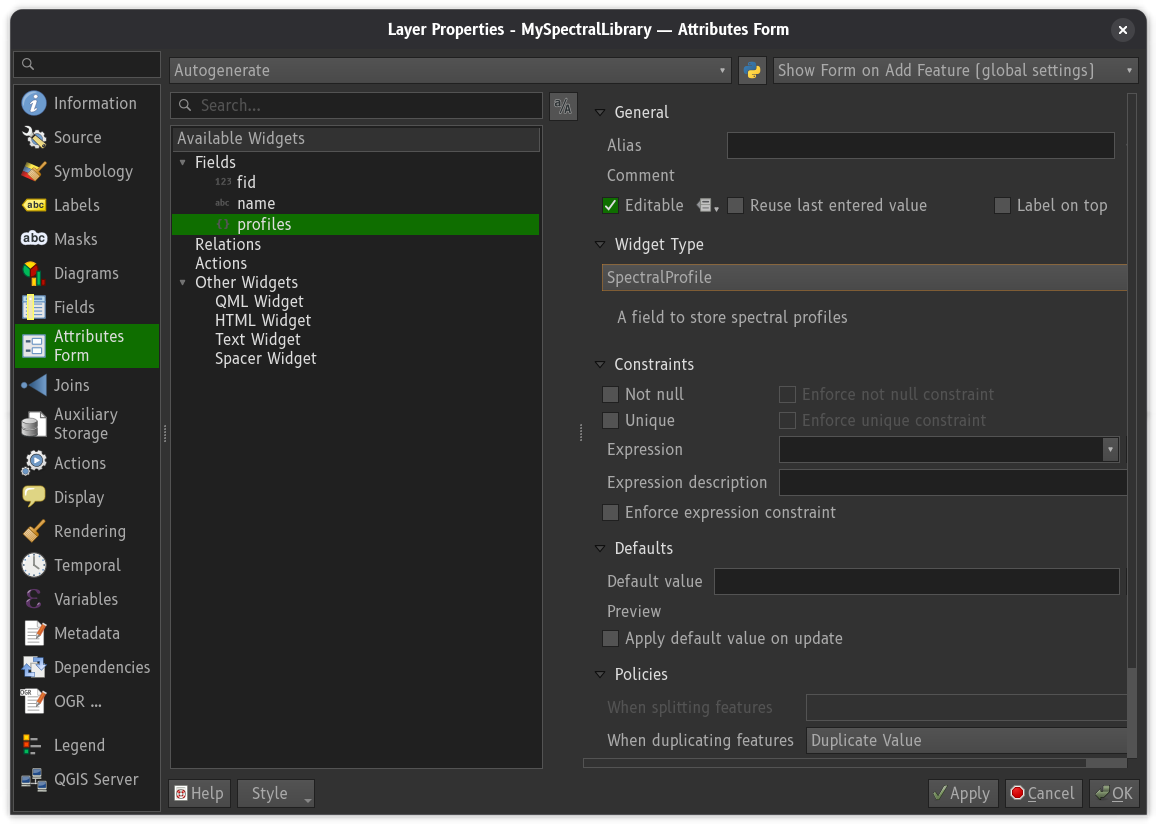
Fig. 34 The SpectralProfile widget type tells the EnMAP-Box, which layer fields can contain vector spectral profiles.
This example shows how to use the QGIS Python API to set the editor widget type to SpectralProfiles and save these settings as the default style.
from qgis.core import QgsVectorLayer, QgsEditorWidgetSetup

layer = QgsVectorLayer('myspeclib.gpkg')
# other code
i = layer.fields().indexOf('profiles')
layer.setEditorWidgetField(i, QgsEditorWidgetSetup('SpectralProfile', {}))

# save the layer style in a *.qml file (myspeclib.qml)
layer.saveDefaultStyle(QgsMapLayer.StyleCategory.AllStyleCategories)
A minimal QML file to ensure that data from the vector field “profiles” is used as a profile field.
<qgis>
  <fieldConfiguration>
    <field name="profiles">
      <editWidget type="SpectralProfile">
        <config>
          <Option/>
        </config>
      </editWidget>
    </field>
  </fieldConfiguration>
</qgis>
The profile fields of vector layers that are opened in the EnMAP-Box, e.g., as a layer in a map, can be selected as a source for a profile visualization
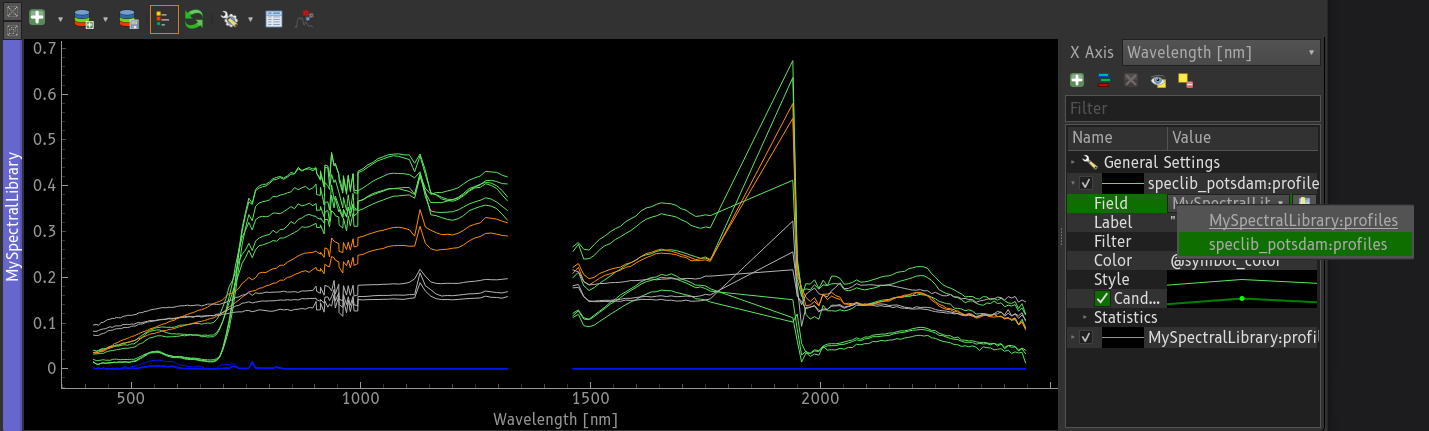
Fig. 35 Selection of a profile field as a source for a visualization.
 Collect Profiles
To collect spectral profiles from raster layers, go into the toolbar and
activate the Identify map tool with option Identify pixel profiles .
Now click on a raster pixel. By default, this creates a new in-memory vector layer “Profiles #1” and opens a spectral library view to show it. The Spectral Profile Sources panel can be used to specify how profiles are collected, e.g., from which raster layer, and to which vector layer field they will be written. In addition, it allows you to specify values for other fields of the vector layer, e.g., to generate a profile name automatically.
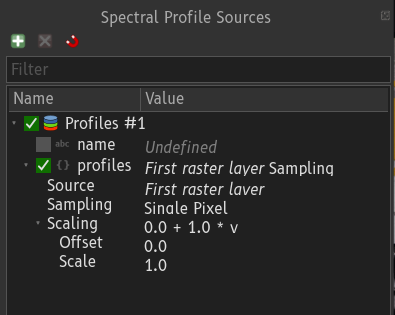
Fig. 36 The spectral profile source panel describes how profiles are collected and written to vector layers.
 Import Profiles
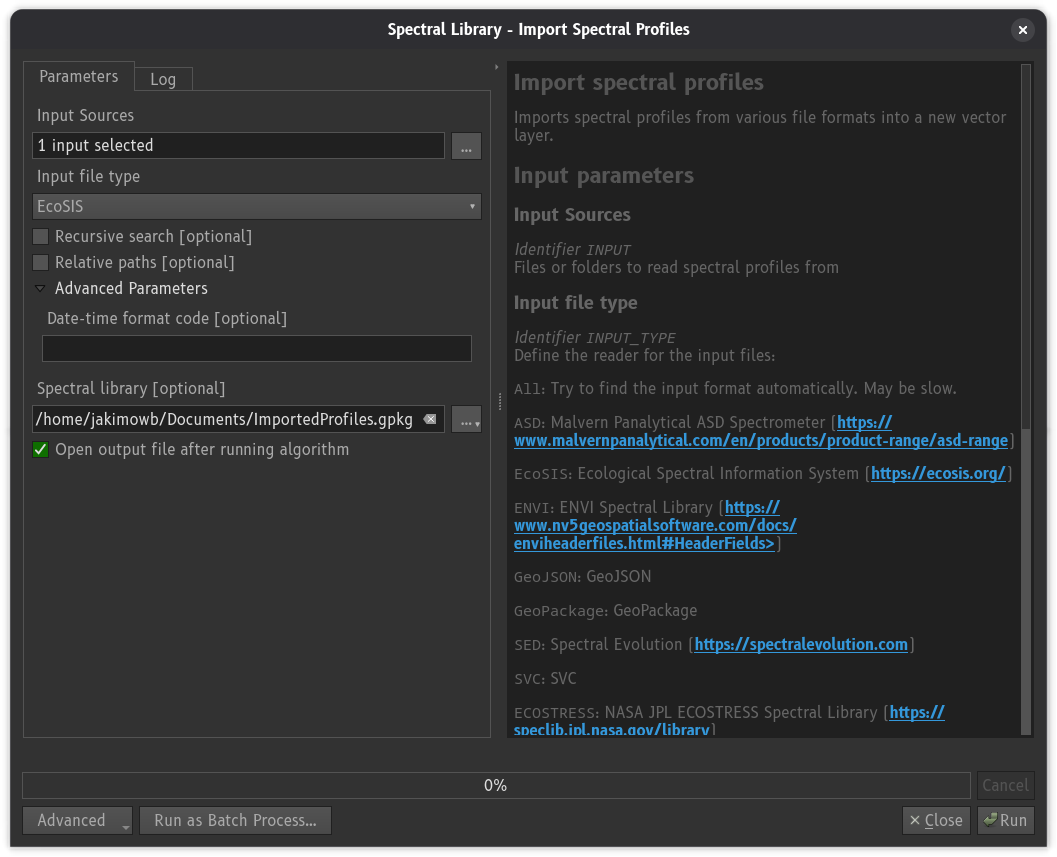
The Import Spectral Profiles algorithm loads profiles from different sources into a new vector layer.
It can be opened from the Spectral Library Viewer, using the button,
or from the QGIS processing toolbox (enmapbox:importspectralprofiles).
The import algorithm tries to identify the format of each source file on its own. However, to improve speed it is recommended to specify the file input type manually.
Input File Type |
Description |
|---|---|
ASD |
Binary file output created by ASD Field Spectrometers |
ECOSTRESS |
CSV text files from the NASA JPL ECOSTRESS Spectral Library https://speclib.jpl.nasa.gov/ |
ENVI |
ENVI Spectral Library binary format |
EcoSIS |
CSV text files from the Ecological Spectral Information System (EcoSIS) |
GeoJSON |
EnMAP-Box Spectral Library, saved as GeoJSON |
GeoPackage |
EnMAP-box Spectral Library, saved as GeoPackage |
SED |
Text file output created by Spectral Evolution Spectroradiometers |
SVC |
Text file output created by Spectral Vista Corporation Spectroradiometers |
 Export Profiles
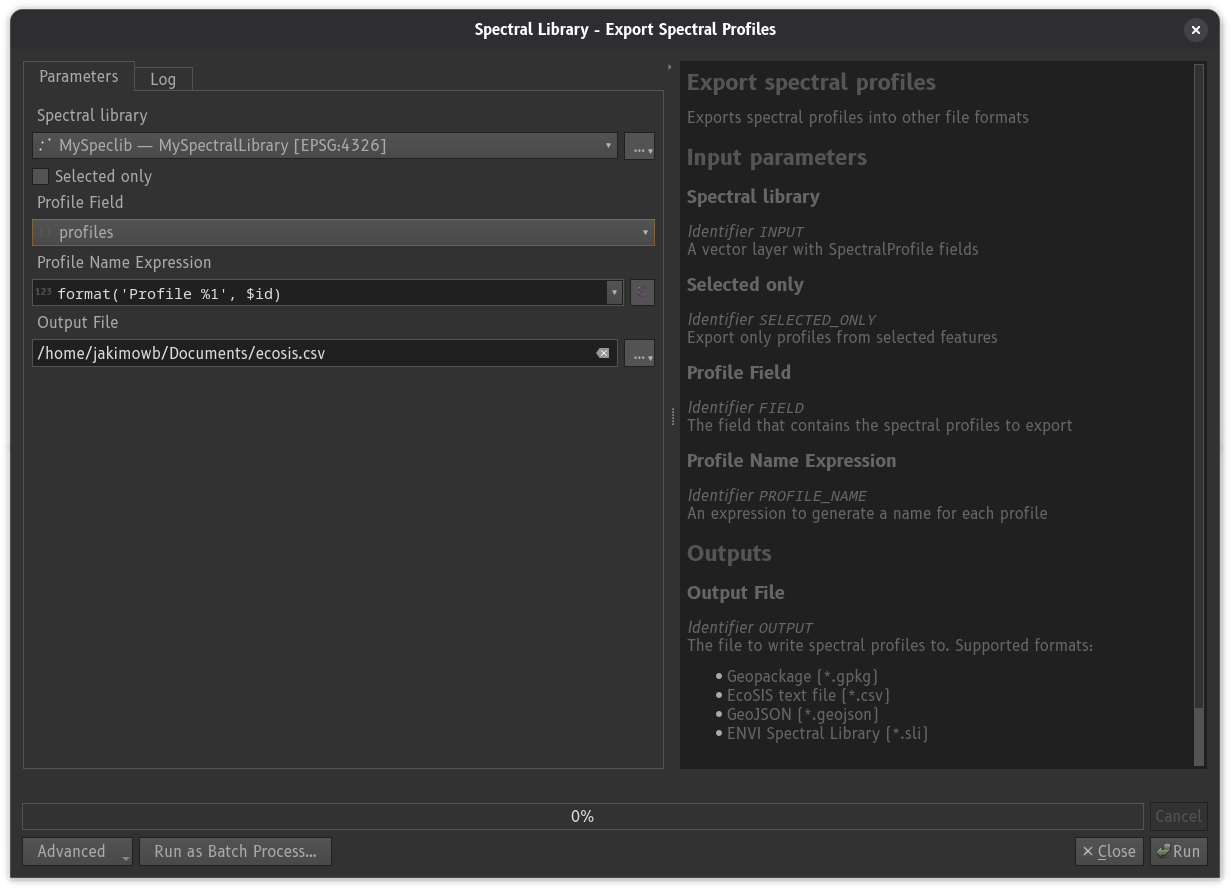
The Export Spectral Profiles algorithm allows to save spectral profiles in
other file formats. It can be opened either from the Spectral Library Viewer, using the button,
or from the QGIS processing toolbox (enmapbox:exportspectralprofiles).
The algorithm requires to specify the Profile Field whose profiles are to be saved, and a field or QGIS expression to get a profile name from.
Export File Type |
Extension |
Description |
|---|---|---|
ENVI Spectral Library |
*.sli |
ENVI Spectral Library binary format |
EcoSIS |
*.csv |
CSV text files used by Ecological Spectral Information System (EcoSIS) |
GeoJSON |
EnMAP-Box Spectral Library, saved as GeoJSON |
|
GeoPackage |
EnMAP-box Spectral Library, saved as GeoPackage |